

File upload methods
- Cristal
- Feature
- Idea
 Thiago Krieck
- Yes
Description
File upload in Cristal can start off from a few different points:
1 - Drag and Drop
2 - Slash Command
3 - Attachment list
These methods are also available on XS, and the basic mechanisms are the same, even if some of the details in implementation can vary.
We always start with the initial state of the document opened:
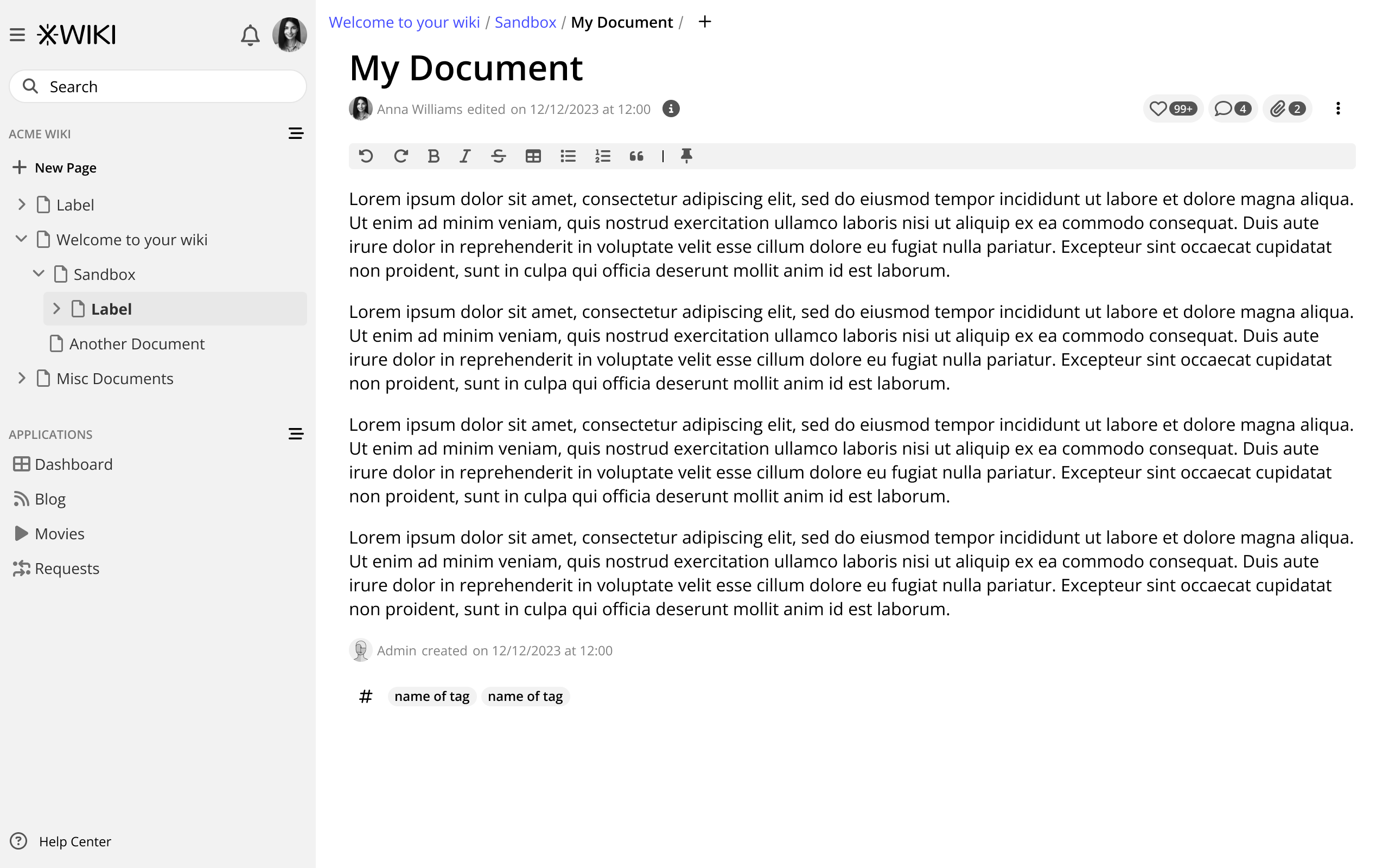
Drag and drop
The way this works is pretty standard with other apps and XS. The user chooses a file from his device, drag it to the point in the document in which the attachment should appear, and the uploading process is handled in the background.
When dragging the file into the document, a line should indicate the position of the drop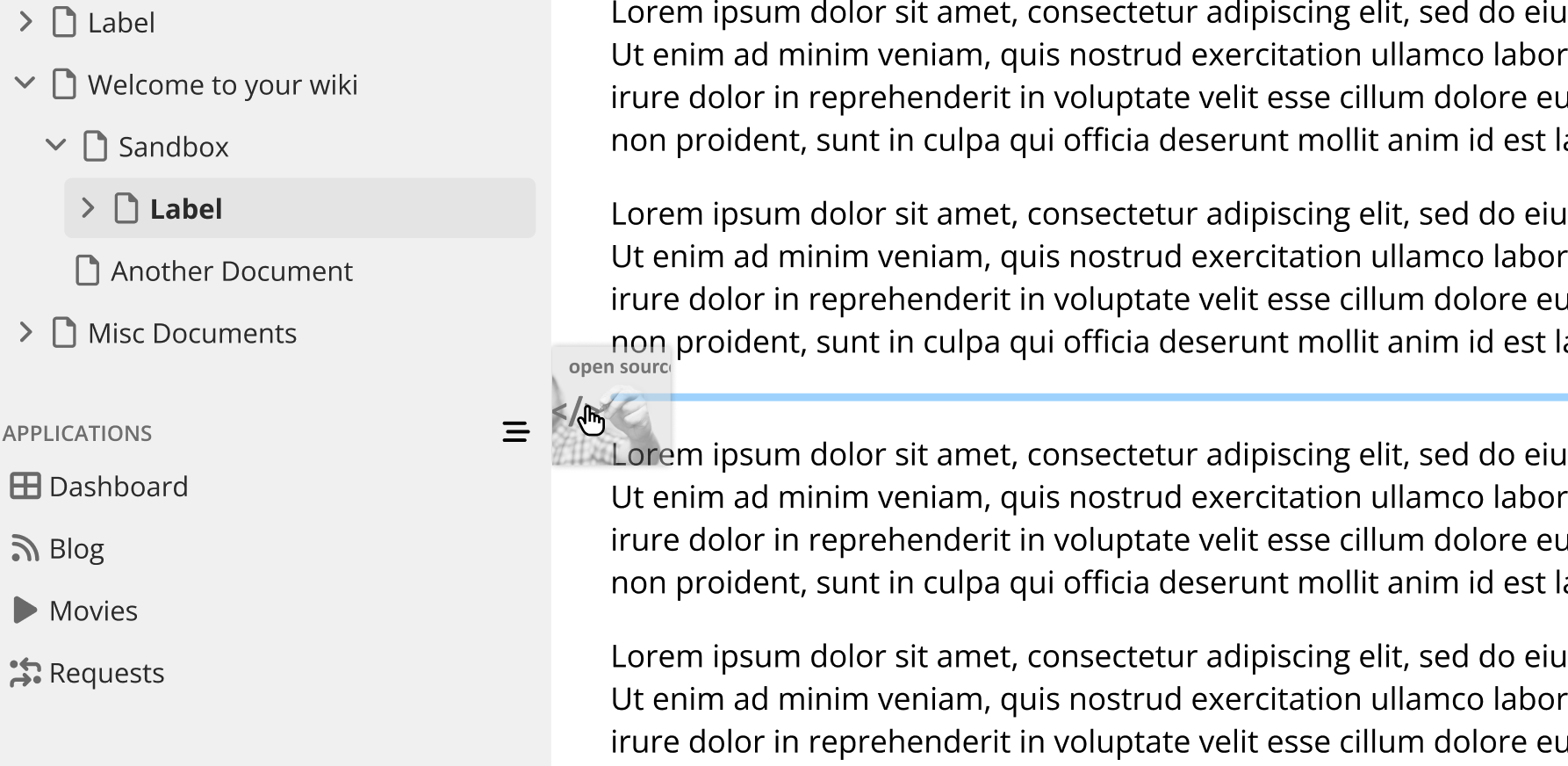
After dropping the file, the upload process should appear in its place. If possible, with an indicator (percentage or progress bar)

With the upload complete, the image should be rendered with default settings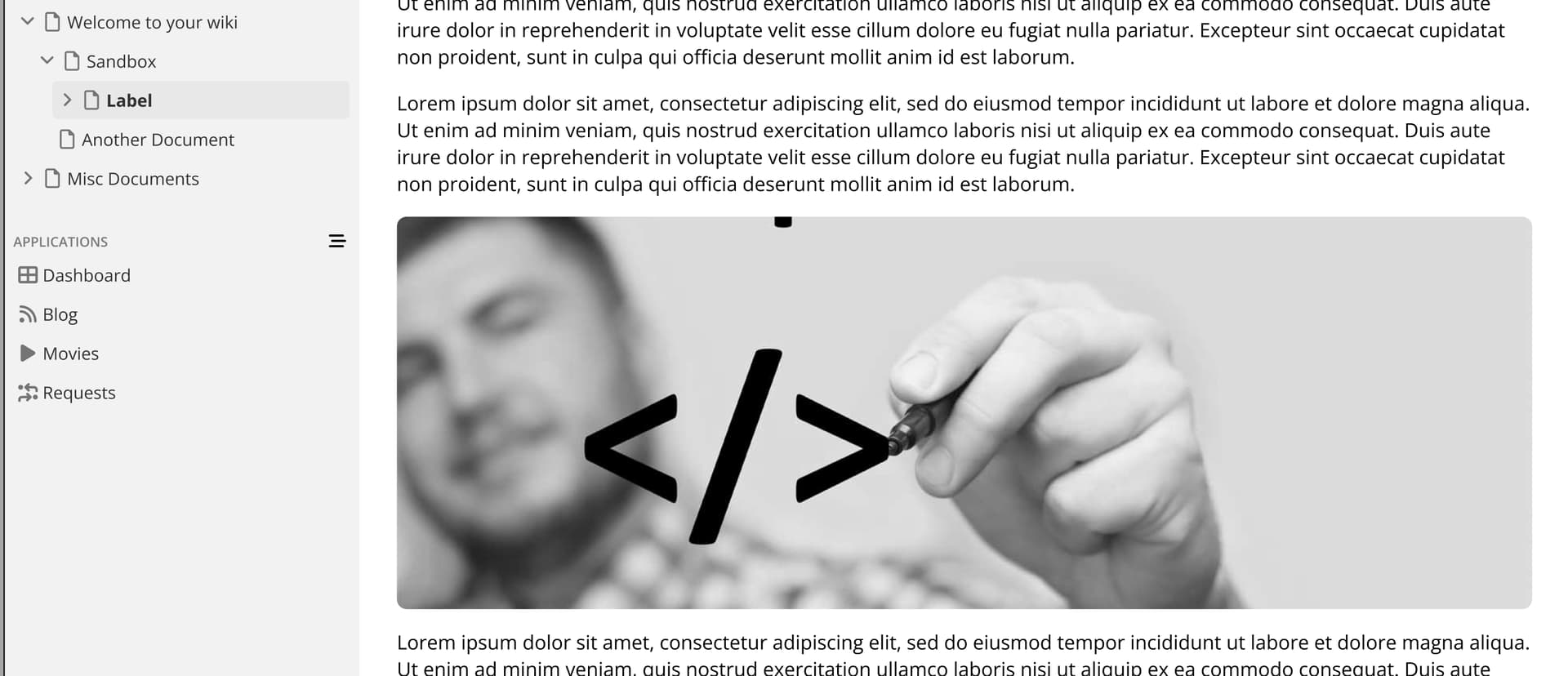
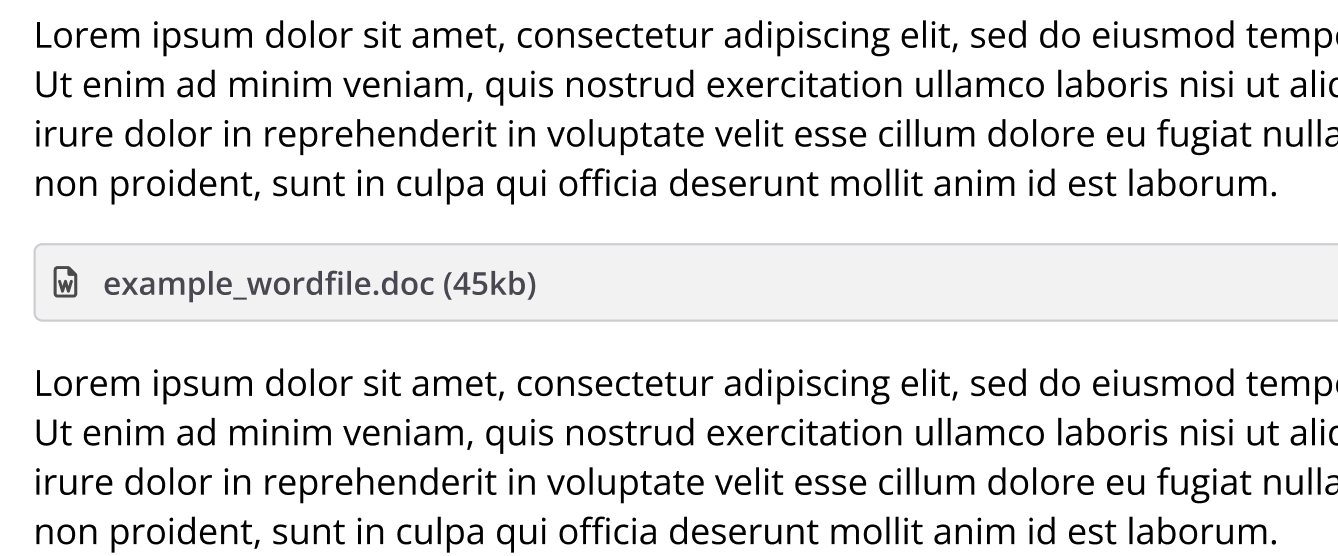
If the file uploaded is not an image and does not have a preview, then a block should be shown in its place, with the name of the file, its icon (if available) and file size. This is important in documents that have references to files, and this needs to be shown in context with the content.
Slash command
This process is a little more involved, the user state its intentions by issuing the /upload or /attach or /image commands (final command to be defined).
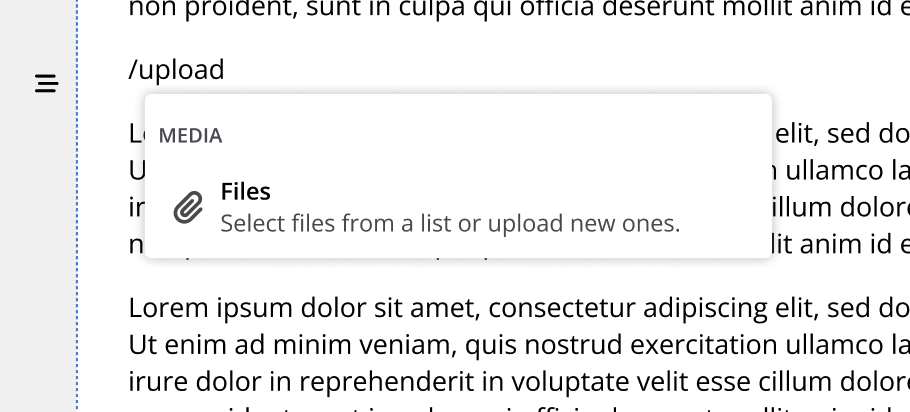
As soon as the user selects the “Files” option, a block should appear above it. This is to ensure that the user can recover should the upload dialog disappears by mistake (a click away, for example).
The popover shown lists all files previously uploaded to the document and are available to be placed in the current position. Also, here we have the option to “Upload new file” via a button that should open the standard OS dialog for selection of files.
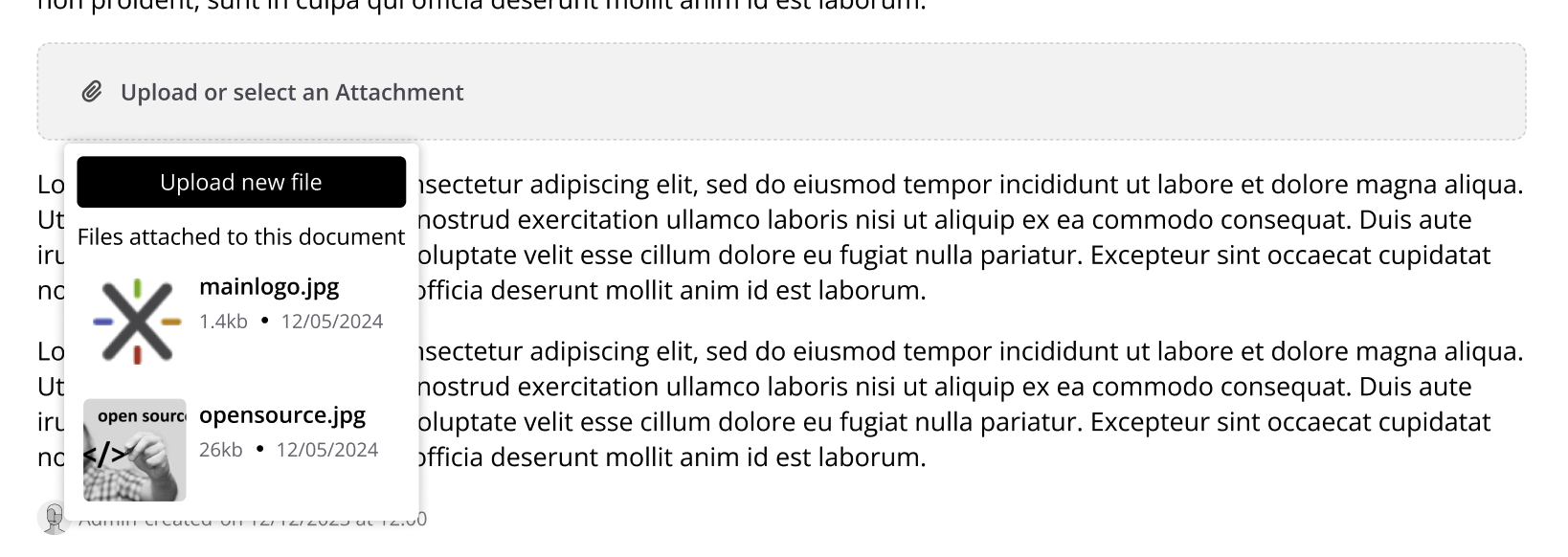
If the attachment chosen were previously uploaded, it will be shown in place immediately. If a new one was chosen, then the box for upload progress described above should appear.
By using the attachment list
This method will be used in case the attachment should be uploaded to the document file list but not shown in the document itself.
First, the user needs to get to the file list. The way to do this is being discussed in this thread, so be sure to check it out if you want to know more about our options for opening these panels. But basically this can be a sidebar on the right or a panel below the document (floating when not at the bottom of the scroll). Here we will be using the panel option.
After opening the file list the user can attach a new file by using the appropriate button.
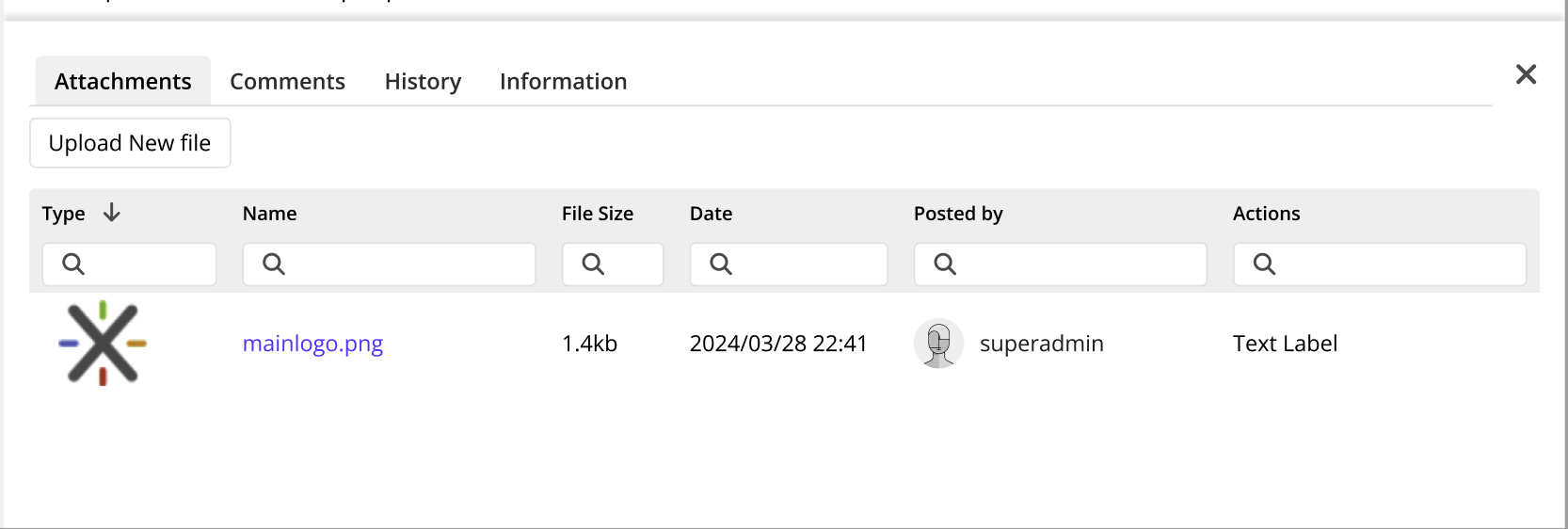
This button should open the standard file select dialog from the OS.
After that, the upload block should appear, showing progress.

File uploaded to the list, but not shown in the document.

Status of upload
Refer to the proposal https://design.xwiki.org/xwiki/bin/view/Proposal/UIimprovementsforattachmentuploads
Multiple uploads
When there are multiple files to be uploaded, the UI should respond by providing one upload container for each file. Users will be able to move these attachments around the doc after the upload is complete.

Comparison with XWiki on implementation
My (@CharpentierLucas ) comments are only about the attachment tab UI.
It seems like there's a lot more info on the XWiki recent redesign: https://design.xwiki.org/xwiki/bin/view/Proposal/UIimprovementsforattachmentuploads . This redesign can be especially interesting for Cristal for the icon/color info it contains to convey all the possible query status. XWiki generates those blocks completely from client-side javascript at upload time, so it should be quite straightforward to use Cristal as a front-end for this.

